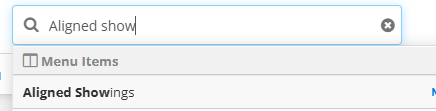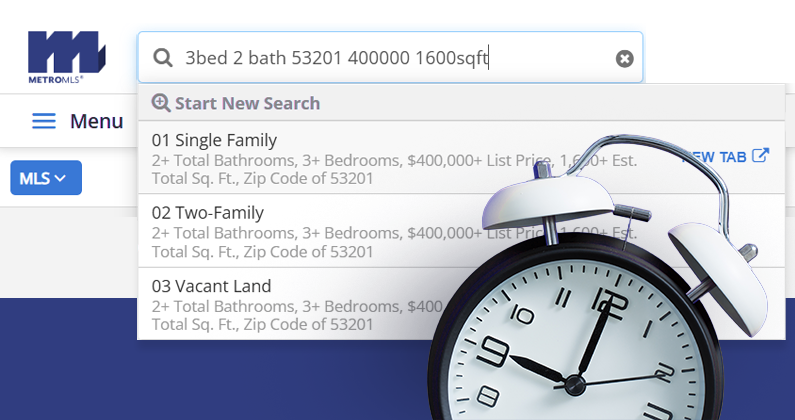
Have you ever known exactly what you wanted to do in Flexmls but couldn’t remember where to find it? Instead of clicking through menus, use the Quick Launch bar to search for features and key information instantly.
By typing at least two characters into the bar, you can look up information in the following areas:
- Saved Searches
- Quick Search Templates
- Your Contacts
- Saved CMAs
- Listing Collections
- Members and Offices
- Listing Addresses
- MLS Numbers
- Menu Items
Below are a few examples of the information you can search for in the Quick Launch bar.
Quick Launch Searching Examples
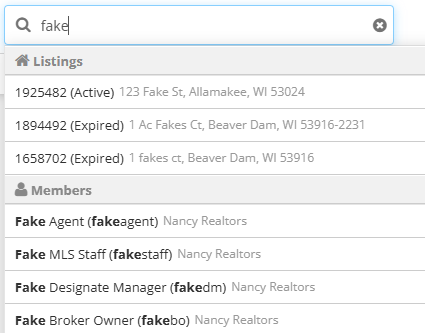
After logging into Flexmls, navigate to the Quick Launch bar. To search for a Metro MLS member, simply begin typing the member’s name into the search field. Matching results will appear in the Members section. Select the member’s name to open their profile, where you can view their contact information and other public details.
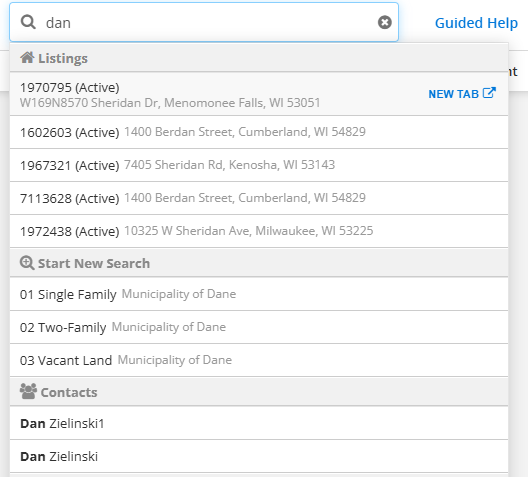
To search for a contact, simply begin typing the contact’s name into the search field. Matching results will appear in the Contacts section. Select the contact’s name to open their profile.
To search for a Metro MLS product, simply begin typing the product’s name into the search field. Matching results will appear in the Menu Items section. Select the product’s name to open the product.