
Have you ever wanted to save your most-used Flexmls menu selections as favorites for quick access, but weren’t sure how? The good news is Flexmls makes it easy.
When you first log on to the Flexmls system, a default set of one-click (Favorite) menu items are displayed horizontally across the top of the page. Favorite menu items give you one-click access to the pages you use the most. You can customize the items that appear in the Favorites menu.
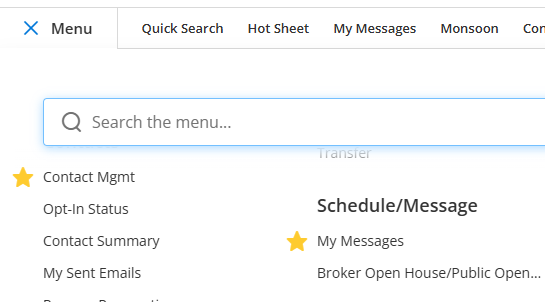
To mark a menu item as a Favorite, hover your cursor over the item. A star appears next to the item. Click the Add to Favorites star to create a one-click shortcut to it on the Favorites bar. In the full menu, Favorites are denoted with a yellow star. To remove an item from the Favorites bar, click on the yellow star next to that menu item. When you remove an item from the Favorites bar, it is no longer marked with a yellow star.
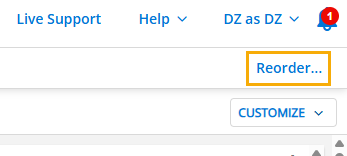
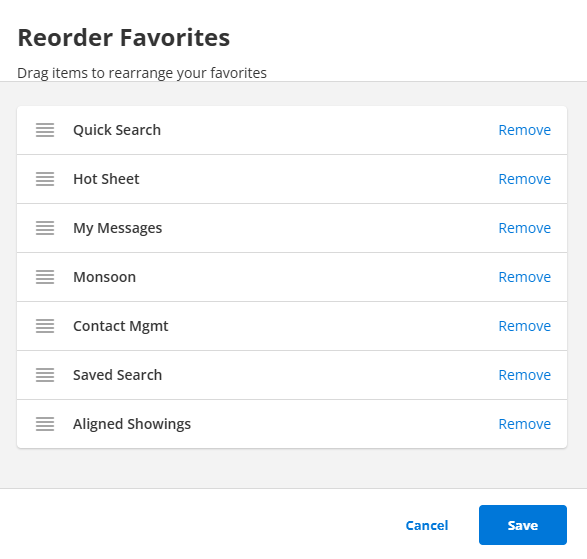
To rearrange the items in your Favorites bar, click Reorder in the top-right corner. In the pop-up window that appears, use the hamburger icons to click and drag your Favorite items in the order that you want. To remove an item from your favorites, click Remove. Click Save when you have finished customizing your favorites.
If you have more menu items in your favorites than can be displayed on the Favorites bar, a More link is displayed, which you can click to access the rest of your favorites. You can also rearrange the order of your favorites in the More dropdown menu by clicking Reorder on the menu bar.