
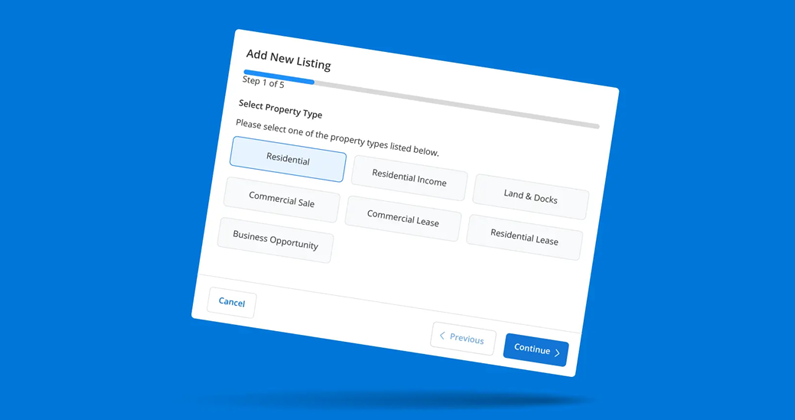
Auto Assistant is now live in Flexmls! This new listing entry interface provides a simpler, more efficient way to get started when adding a listing.
Auto Assistant guides you through a multistep form that collects key property information, including property type, address, geolocation, tax data and more. It then uses that information to pre-populate the full listing entry form, helping reduce manual data entry and improve accuracy.
You’re still in control! You decide which autofill options to use and can review and confirm all data before publishing your listing. Auto Assistant streamlines the process while keeping you in control of your listing information.
How to Use Auto Assistant
To use Auto Assistant, go to Add Listing in the Flexmls Menu, and complete the following steps:
Step 1: Select Your Property
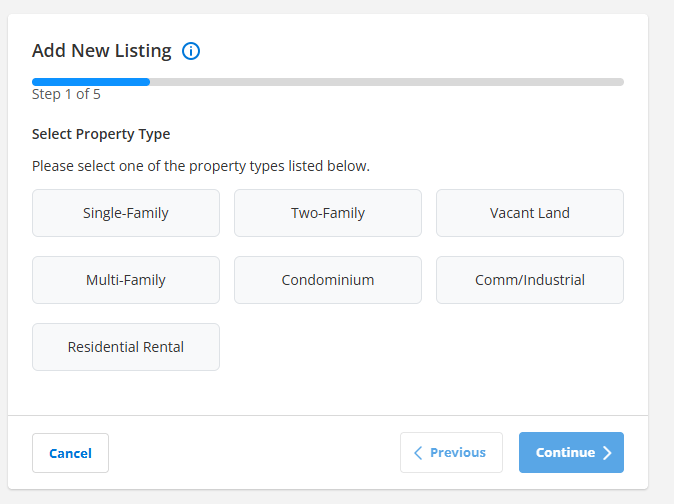
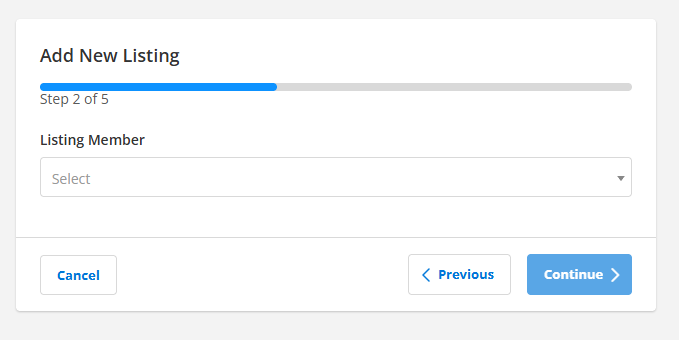
Step 2: Select Listing Agent
If you add listings on behalf of other subscribers in your office, you can select the appropriate listing member. If you only add listings on behalf of yourself, this step will not appear, and you’ll automatically be entered as the listing subscriber on the listing.
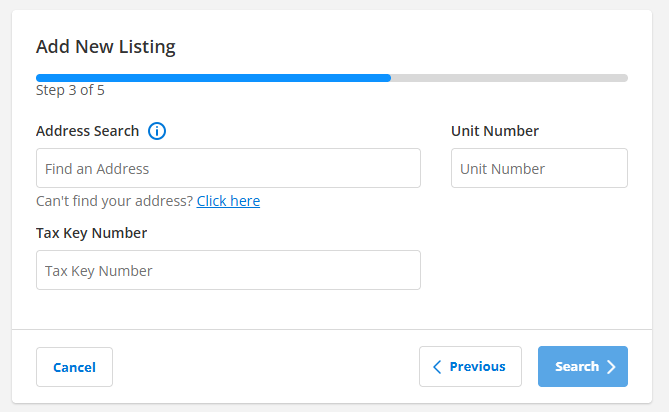
Step 3: Search Your Address
If you can’t find your address, you can enter the address manually using the Click here option.
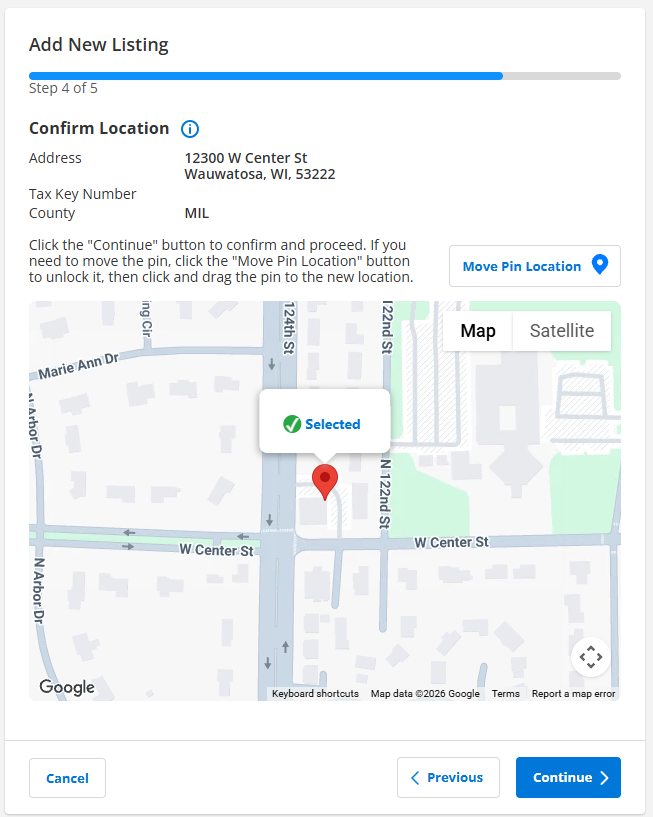
Step 4: Verify Address and Confirm Geo Location
Verify that the listing address is correct. To confirm the geo location, click Use This Location. Click Continue to proceed.
Note: The location of the pin cannot be adjusted. If the displayed address needs to be changed, you can update the location in the Address section of the incomplete listing after you have completed the Auto Assistant steps.
Step 5: Select Data to Autofill
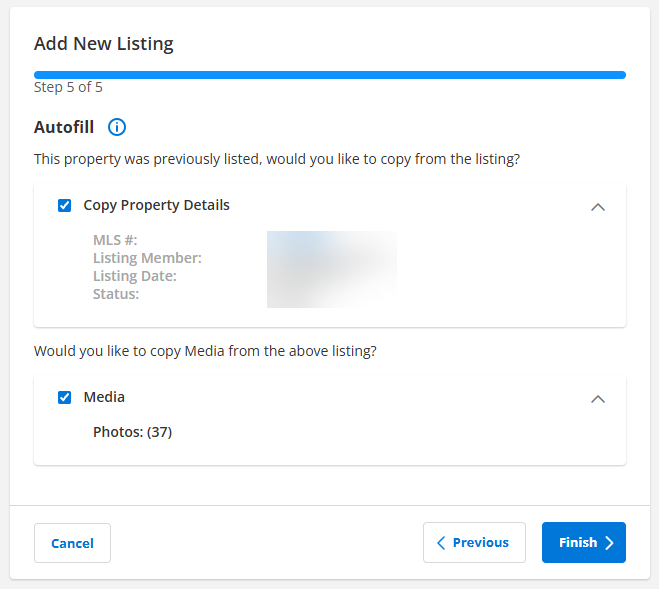
This step will find tax data and previous listing data to autofill to your new listing.
If Auto Assistant detects a previous listing and tax data, and if you have selected both options, the tax data will take precedence and pre-populate any duplicative information. Under Copy Property Details Auto Assistant will detect the most recent off-market listing, and you can use this listing to autopopulate listing data. If you want to see the listing details that will be copied over, you can view the previous listing information by clicking on the MLS number link.
Step 6: Finish Listing
Click Finish. Your listing will save as an incomplete listing. Open your listing, and see many fields pre-populated!
To complete a listing, select Listing Information on the Change Incomplete Listing page. This will take you to the familiar Add Listing screens, where you can review and verify the listing information and update the listing status if necessary.
Don’t forget – the agent is always responsible for checking the accuracy of the data, regardless of the source! Be sure to review any auto-populated data before publishing.