

Protecting our members, their clients and sensitive data is our top priority. Beginning Nov. 3, Multi-Factor Authentication (MFA) will be required for all users.
With MFA, you add an extra layer of protection to your account. Even if someone gains access to your password, they can’t log in without your second verification step. It’s one of the simplest and most effective ways to safeguard your information.
The best part? Setup takes just a few minutes. Below are steps on how to set up MFA. You also can watch the below how-to video.
Turn on Multi-Factor Authentication
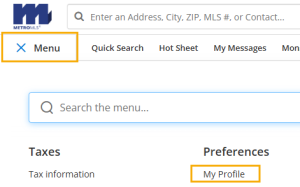
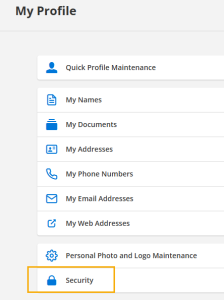

Enter your password to confirm your identity. Click Next.
Choose how you want to receive your security code.
If you have a smartphone and want to use an app to receive security codes, click Use a mobile app. If you prefer to receive text messages instead, click Use text message. If you do not have a smartphone or cannot receive text messages, click Call my phone instead to receive security codes via voice call. After you make your selection, click Next.

Finish setting up multi-factor authentication using the method you selected.
🔵 Mobile App: If you selected Use a mobile app, click on the type of device (iPhone, Android, Blackberry, or Windows Phone). Follow the instructions on the page to install and set up the app on your device, then click Next. The app will display a six-digit security code. Enter the security code in Flexmls and click Next. On the next page, click Enable multi-factor authentication.
🔵 Text Message: If you selected Use text message, select your country code and then enter the mobile number you want to use. Click Next. You will receive a text message with a six-digit security code. Enter the security code in Flexmls and click Next. On the next page, click Enable multi-factor authentication.
🔵 Phone Call: If you selected Call my phone instead, select your country code and then enter in the telephone number you want to use. Click Next. You will receive a voice call with a six-digit security code. Enter the security code in Flexmls and click Next. On the next page, click Enable multi-factor authentication.
Once complete, you will see a confirmation message stating that you have successfully enabled multi-factor authentication. Click Done to exit.
Log In to Flexmls
After you enable multi-factor authentication, the next time you attempt to log in to Flexmls, you will be sent a verification code via the method you selected. You will be required to enter the verification code in order to log in.

The code resets every 30 seconds. If you are not able to enter it quickly enough, you can click Send me a new code to get another code. Click Remember this browser for 30 days to temporarily not require a code when you log in on the same browser and computer. In 30 days, you will be required to enter a code again to verify your identity.